Customizing QR Codes
This guide shows how to fully customize QR codes in SQR using logos, colors, frames, shapes, and images. Create branded, high-visibility QR designs easily.
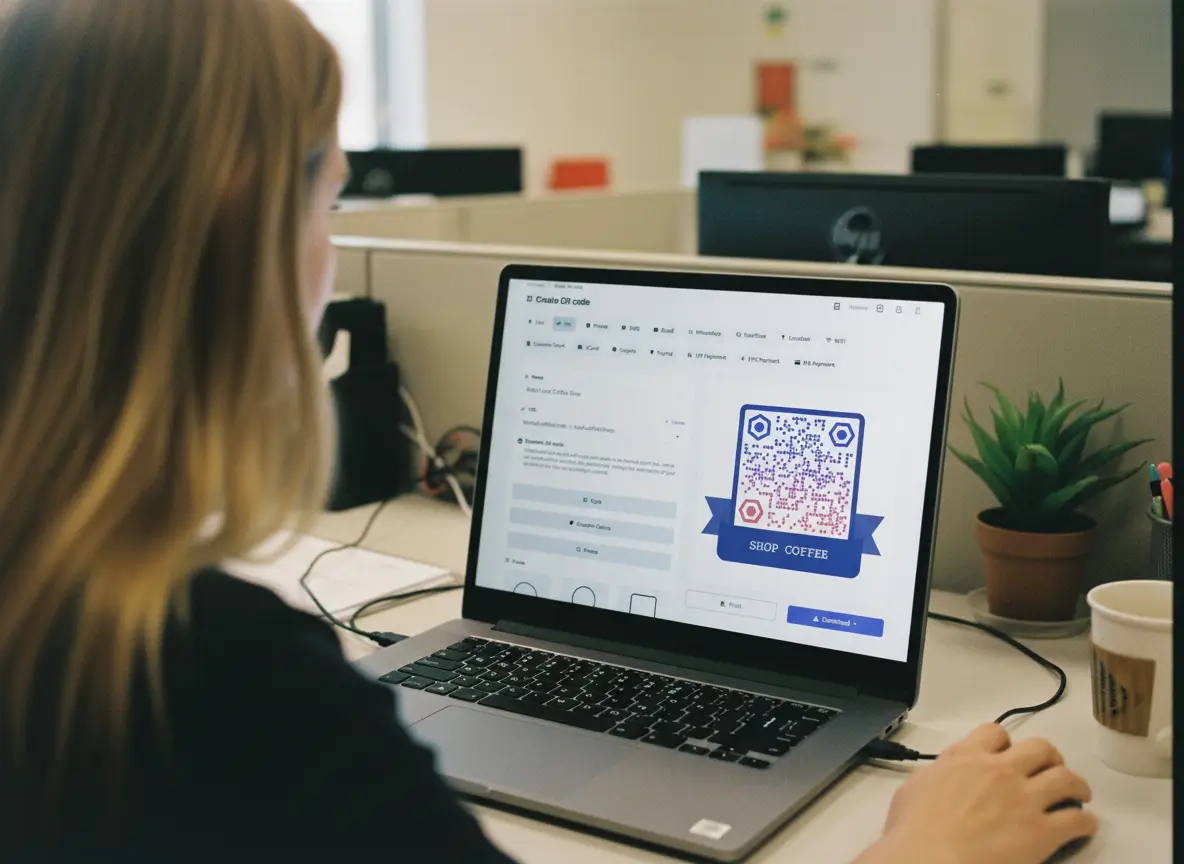
SQR gives you full creative control over how your QR codes look. Whether you want a simple black-and-white code or a fully branded design with colors, frames, logos, and custom shapes, everything can be customized directly inside the editor.
This guide walks you through every customization option available, how each section works, and what you can do with it. You’ll also get tips, best practices, and a small FAQ at the end.
QR codes don’t have to look generic anymore. With SQR, you can style your QR codes so they match your brand, stand out on posters, look clean on menus, or visually fit your marketing materials. Customization is optional, but extremely useful when you want:
• Branded QR codes for restaurants, shops, gyms, agencies
• More trust and higher scan rates
• Better visibility on print materials
• QR codes that match your design identity
• Aesthetic variations for campaigns or events
All styling happens inside the QR Customization interface, which is divided into a few sections:
• Logo
• Background image
• Foreground image
• Frame and frame text
• Style (shape options)
• Colors (foreground, background, gradients, eye color)
Let’s go through each section one by one.
1. Adding a Logo
You can add a logo to the center of your QR code to make it instantly recognizable.
Uploading a Logo
Click Choose file under the Logo section. Supported files:
• .jpg
• .jpeg
• .png
• .gif
• Maximum size: 1 MB
PNG logos with transparent backgrounds look the best.
Adjusting Logo Size
You’ll see a slider labeled Logo size. This controls how large the logo appears in the center of the QR code.
Tip:
Avoid making the logo too big, otherwise scanners may struggle to read the code. A moderate size (20–40%) is ideal.
2. Background Image
If you want your QR code to appear on top of an image—like a pattern, texture, brand graphic, or product image—you can use the Background Image option.
Uploading a Background
Just like the logo, you can upload an image up to 2 MB in size.
Adjusting Transparency
The slider under Background image transparency lets you lighten the background so the QR code remains easy to scan.
Tip:
Keep transparency low or mid-range. The QR code must stay readable.
3. Foreground Image
Foreground images allow you to add a graphic overlay behind the QR pattern, giving the code a more designed look.
This is useful for:
• Pattern overlays
• Brand textures
• Watermarks
• Creative marketing designs
You have full control with a transparency slider so you can make the overlay bold or subtle.
4. Frames
Frames help your QR code stand out and give you space to add guiding text (like “Scan Me”). SQR offers a wide collection of frames, as shown in the screenshots.
Choosing a Frame
Click any frame style to apply it. There are:
• Minimal frames
• Rounded frames
• Ribbon-style frames
• Polaroid-style frames
• Decorative frame styles
• Frames with built-in space for text
If you don’t want a frame, choose the “X” option (no frame).
Adding Frame Text
Frames that support text allow you to add a short message. Perfect for:
• “Scan Me”
• “Menu”
• “Order Here”
• “Book Now”
• “Learn More”
Enter your text in the Frame text field.
Adjusting Text Size
Use the Frame text size slider to control visibility.
Choosing a Text Font
You can pick from a full set of fonts, including:
Times New Roman, Georgia, Courier, Arial, Helvetica, Verdana, Tahoma, Trebuchet MS, Monaco, Impact, Baskerville, Papyrus, Brush Script, and more.
Tip:
Stick to clean, readable fonts. Overly decorative fonts can hurt readability.
5. Style Options (Shape Customization)
This section gives you full control over the shape of the QR modules (“dots”) and the eyes (the three corner markers).
QR Code Style (Modules)
The grid of shapes contains many options:
• Squares
• Circles
• Diamonds
• Stars
• Hearts
• Rounded shapes
• Triangles
• Decorative designs
• Sharp geometric variations
Switching shapes can completely change the personality of your QR code.
Inner Eye Style & Outer Eye Style
The eye styles customize the three anchor squares in the corners. You can choose:
• Rounded
• Circular
• Hexagonal
• Leaf-shaped
• Octagonal
• Decorative shapes
Matching the inner and outer styles creates a cohesive look, but you can mix them for a more playful design.
Tip:
Eye shapes should remain clear and distinct. Changing them too drastically can reduce scan reliability.
6. Custom Colors
The Custom Colors tab controls all color-related design elements. You can toggle custom colors on or off.
Foreground Type
Two options:
Color
Basic solid color for the QR code.
Gradient
Two-color gradients for a more premium look.
Foreground Color
Pick a solid color or gradient for the QR code pattern.
Popular choices:
• Black (classic)
• Brand primary colors
• Dark blue or dark green for a clean look
• Gradient blends for campaign visuals
Background Color
Adjust the background color behind the QR pattern.
Background Transparency
The slider lets you make the background partially transparent. This helps the QR integrate with printed designs or light backgrounds.
Custom Eyes Color
Turn this on to color the corner eyes separately.
This is a simple way to add branding without over-styling the entire QR code.
Tip:
Always keep enough contrast between foreground and background. Low contrast reduces scanability.
7. Best Practices for QR Customization
1. Keep contrast high
The QR code must stand out clearly from the background.
2. Avoid overly complex backgrounds
Busy backgrounds can make scanning harder.
3. Use brand colors carefully
Stick to darker colors for the QR pattern when possible.
4. Don’t oversize your logo
Large logos can block important scan elements.
5. Test your QR code from multiple distances
Especially if it's going on posters, menus, stickers, or packaging.
6. Stick to clean, readable frame text
Short words are best.
7. When in doubt, choose simplicity
Minimal designs scan faster and look cleaner.
8. Example Use Cases
Restaurants
• Add a “Menu” frame
• Use brand colors
• Small center logo
• High contrast for dim lighting
Retail
• Add product or campaign frames
• Use gradients for seasonal designs
• Add frame text like “Shop Now”
Gyms
• Strong brand colors
• Bold frame text (“Join Now”)
• Logo for credibility
Agencies
• Create branded QR templates for clients
• Custom shapes + logos
• Use custom color palettes
Events
• Add “Scan for Schedule" frames
• Include event branding
• Match the event’s visual identity
9. FAQ
Will heavy customization affect scanability?
Only if the contrast is low or the logo is oversized. Normal customizations are fully safe.
Which image format should I use for logos?
PNG with transparent background is ideal.
Can I download my customized QR code in high resolution?
Yes. You can export in formats suitable for print materials.
Are gradients safe to use?
Yes, as long as they aren't too light and maintain contrast.
Can I change the design later without recreating the QR code?
Yes. You can restyle the QR anytime without affecting its destination. Old designs will still work as long as you don't change the destination.
What if my background image is too dark?
Use the transparency slider to lighten it and boost readability.
Does every frame support text?
No. Only text-supported frame designs allow you to add frame text.
Can I make multiple QR styles for the same short link?
Yes. You can download as many versions as you want using the same link.
Are all shapes equally scannable?
Yes. SQR ensures every shape variation meets scanability standards. Be sure to always test your QR Codes before printing.
Can I reset the design back to default?
Yes. Simply turn off custom colors or choose the default styles. Or create a new QR code with the same destination.
Customizing your QR code isn’t just about looking good. It helps with:
• Branding
• Trust
• Scan rates
• Professional presentation
• Visibility across print and digital material
Start simple, test thoroughly, and refine designs to match your brand identity.