vCard QR code
A vCard QR Code lets users save your full contact details with one scan. A simple, fast way to share information in business, events, or personal settings.
What it is, how it works, and when to use it
A vCard QR Code instantly adds your contact details to someone’s phone.
When a user scans it, their device opens the built-in contacts app and prepares a full contact card: name, email, phone numbers, address, company details, birthday, job title, website, and any notes you include.
It removes friction. No typing, no mistakes. One scan, saved.
This type of QR is perfect for business cards, event badges, brochures, packaging, networking, or anywhere you want people to remember you and reach you easily — without handing over paper or writing anything down.
How a vCard QR Code works
A vCard QR Code stores structured contact fields in a standard format.
Every phone knows this format. After scanning, the device simply reads the fields and creates a new saved contact.
It works on iPhone, Android, and most modern devices.
How to create a vCard QR Code
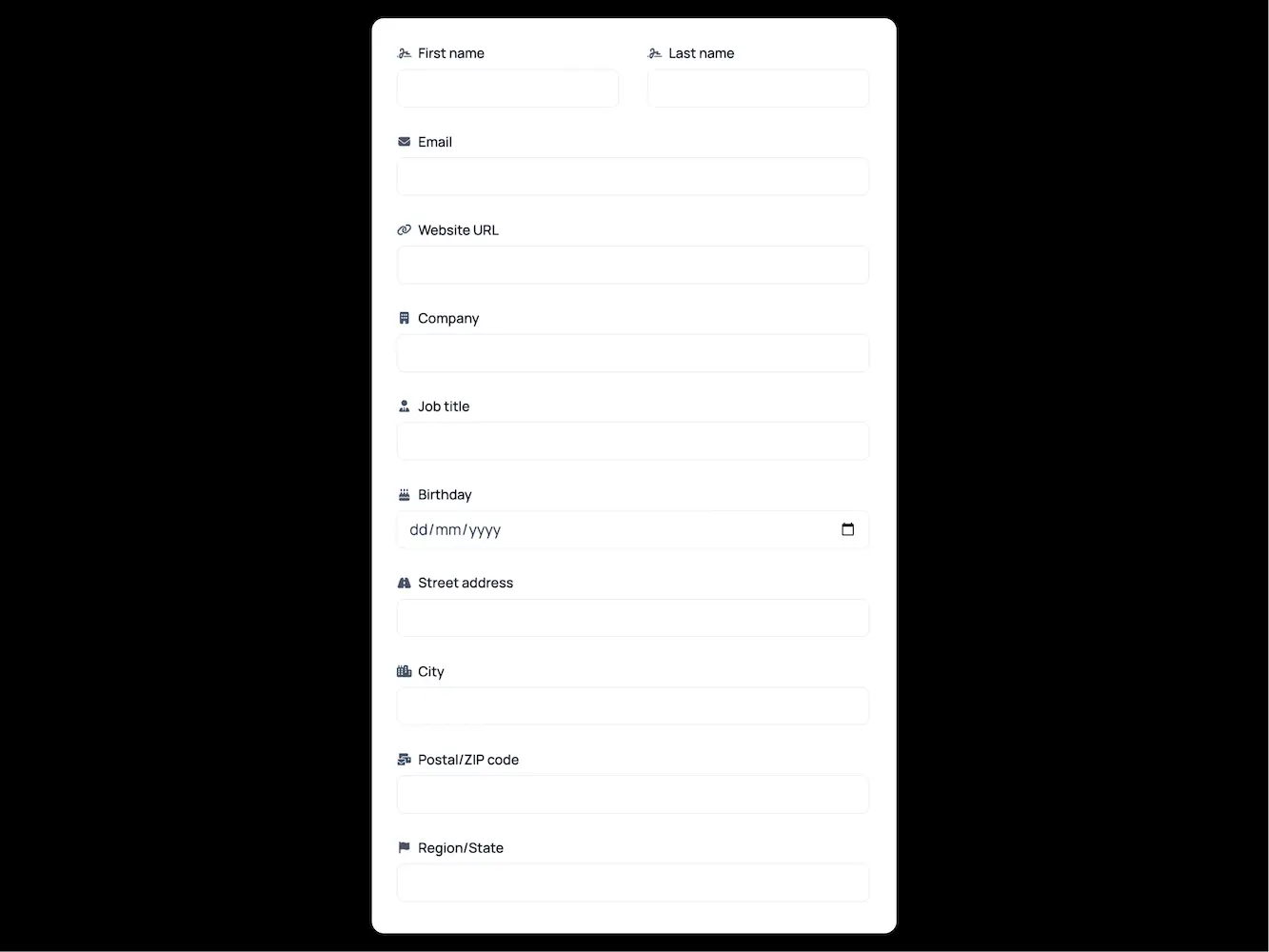
The vCard QR generator on SQR includes all standard contact fields.
You can fill in as many or as few as you want.
Available fields:
• First name
• Last name
• Email
• Website URL
• Company
• Job title
• Birthday
• Street address
• City
• Postal/ZIP code
• Region/State
• Country
• Phone numbers (mobile, work, home)
• Note
The more fields you add, the more complete your saved contact becomes.
All fields are optional — but including at least a name, phone, and email gives the best experience.
What each field does
Name
The primary identifier. Appears as the saved contact name.
Email
Opens the user’s email app instantly when they tap it later.
Website URL
Adds your site or landing page directly in the saved contact.
Company & Job title
Useful for business, sales, and networking.
Birthday
Optional, but helpful for personal or VIP contacts.
Full address details
Useful for stores, offices, service locations, or deliveries.
Notes
Anything extra: opening hours, short instructions, private details.
All of this becomes part of the saved contact — not just a link.
Common uses
vCard QR Codes are ideal for anything involving identity, networking, or follow-up.
• Business cards (physical or digital)
• Event badges
• Flyers, brochures, packaging inserts
• Storefronts and service counters
• Sales meetings
• Portfolio links for creatives
• Appointment desks
• Real-estate open houses
• Personal branding
They eliminate typing, reduce errors, and increase the chance that someone actually keeps your details.
Limitations
A vCard QR Code is powerful, but keep these points in mind:
• Static vCard QR Codes cannot be edited after printing
• Some older Android phones support fewer fields
• Very long notes increase QR density
• Emoji and rare characters may not be supported everywhere
• Contact format looks slightly different depending on the phone
Best practices
• Keep the name field short and clear
• Include at least one phone number and one email
• Add your website if you want traffic or leads
• Keep notes brief so the QR stays clean
• Test on iPhone and Android before printing
• Use dynamic if anything may change in the future
• Add a clear label like “Scan to Save Contact”
A vCard QR Code is the simplest, cleanest way to share your full contact details instantly — no apps, no typing, no mistakes.